
Good fit
Clean product shots, AI artwork, thumbnails, campaign images, portraits, and source frames that need more resolution.

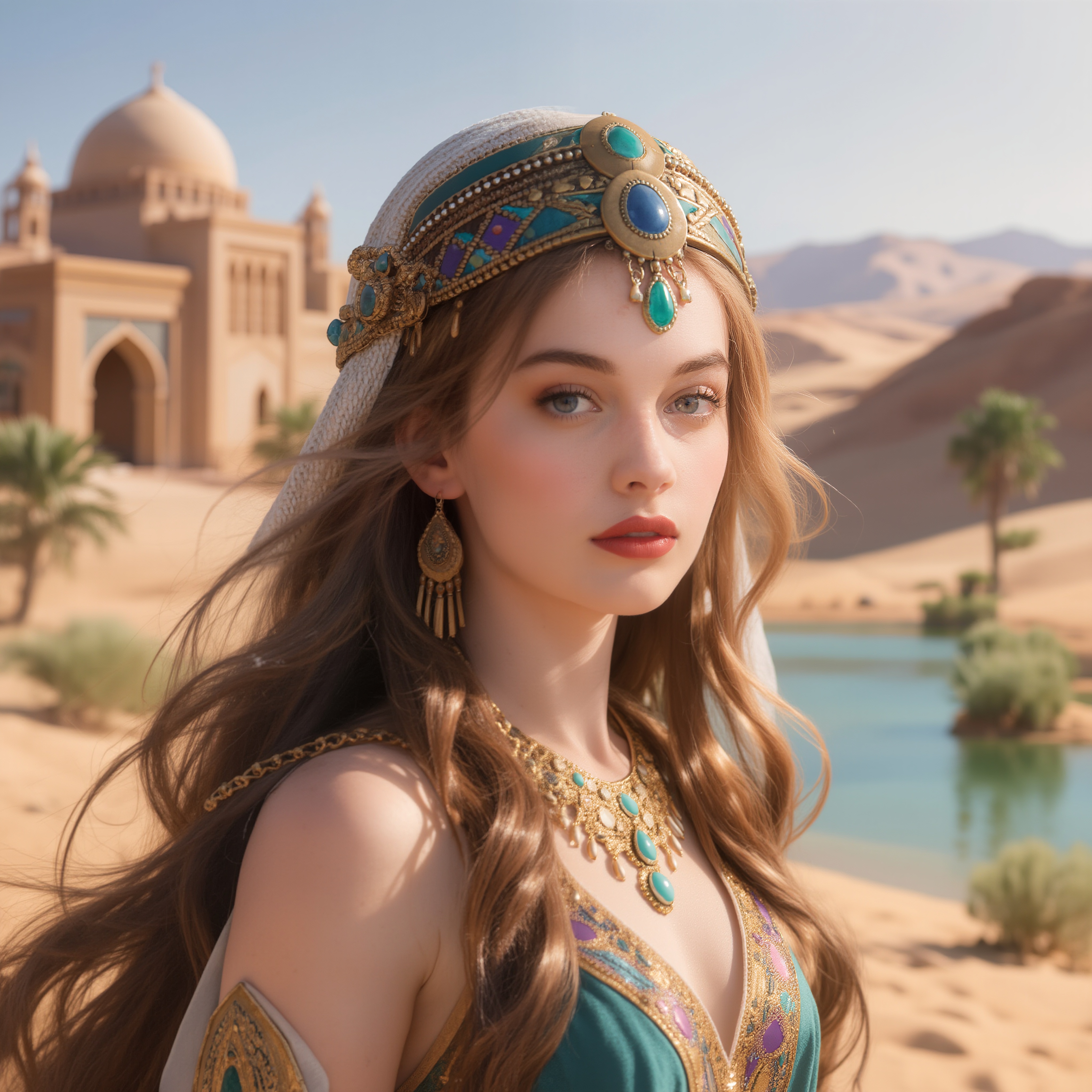
AI Image Upscaler is for the moment after the creative direction is already right. The product shot, campaign visual, thumbnail, or AI artwork works, but the file is too small for the place it needs to go.
Upload a JPEG, PNG, or WEBP image, choose 2K, 4K, or 8K, then compare the original with the AI Image Upscaler result before you download or reuse it in the rest of your image and video workflow.
AI Image Upscaler works best when the composition is final and the important details are already readable. It can sharpen and enlarge a useful image, but AI Image Upscaler should not be treated as a rescue tool for files where the subject, face, text, or product edge is already lost.
Clean product shots, AI artwork, thumbnails, campaign images, portraits, and source frames that need more resolution.
Tiny screenshots, heavy blur, unreadable text, compression blocks, or images where the original subject is ambiguous.
Use the sharpest source file you have, then let AI Image Upscaler handle the resolution pass instead of stacking manual resize filters.
A bigger output is not automatically a better decision. Pick the AI Image Upscaler resolution that matches the next job so you spend credits where the extra pixels actually matter. For most teams, AI Image Upscaler should be a production step, not a default setting.
Use 2K for quick previews, social drafts, internal approvals, and lightweight web placements.
Use 4K for landing page images, ecommerce visuals, ad creatives, pitch decks, and polished social graphics.
Use 8K when you need room for close crops, print layouts, large displays, or high-resolution video frames.
The before-and-after preview is part of the workflow, not decoration. Check edges, faces, small type, texture, and compression cleanup before you download the final file.
If you plan to animate the image or use it as a reference for another model, review the upscaled image first. A clean AI Image Upscaler pass gives downstream tools a stronger source asset.
After AI Image Upscaler improves your source image, continue with the tool that matches the next production task. The goal is to keep AI Image Upscaler connected to a real asset pipeline instead of treating it as a one-off resize.
AI Image Upscaler enlarges a source image to a higher target resolution, such as 2K, 4K, or 8K, while enhancing visible detail and reducing the softness that often appears after ordinary resizing.
Yes. AI Image Upscaler is useful for AI art, product concepts, posters, thumbnails, and other generated images that look good but need a larger export for publishing or editing.
Not always. Use 4K for most web, social, and presentation needs. Choose 8K when you need more room for cropping, print layouts, or high-resolution video production.
The AI Image Upscaler keeps the original composition, but enhancement can slightly change texture, edges, or fine details. Always compare the result before using it in a final asset.
You can upload JPEG, PNG, or WEBP images up to 10MB and 4096 x 4096 pixels. Use the cleanest source file available for the best upscale result.
Not reliably. It can make already-readable labels and small type look clearer, but text that is lost in the original may be reconstructed incorrectly.
Yes. A sharper image is often a better source for photo-to-video generation, especially when the final clip includes close crops or camera movement.
Upload the image that is already close, choose the resolution that matches the next channel, and let AI Image Upscaler create the sharper production version.